# 🚀 **What's New: Bank Charges Handling in Receive Payment**
HAL ERP now supports automatic handling of bank charges (including VAT) in the Receive Payment screen — ensuring proper customer settlement, expense booking, and smooth bank reconciliation.
1️⃣ New Field: Charges
- Added a new column Charges in the Receive Payment screen.
- Used to enter total bank deduction amount (including VAT).
- When Charges > 0, additional related fields become visible.
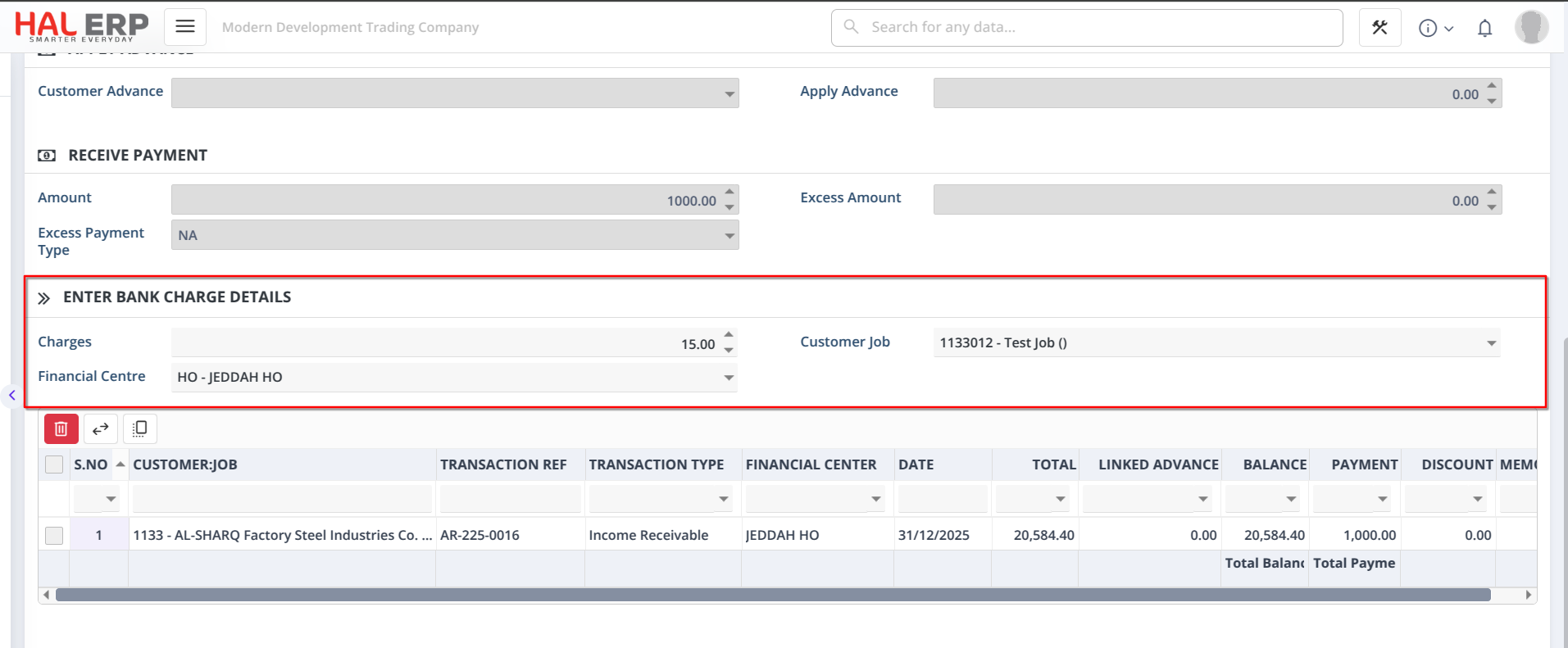
2️⃣ New Fields (Visible Only When Charges > 0)
🔹 Customer Job (Charges Customer Job Column)
-
When Charges > 0, a new Customer Job column becomes visible.
-
This column works based on what is selected in the Main Customer Job field:
-
If a Customer is selected in the main column:
→ The new Customer Job column will show that customer and all its respective customer jobs.
→ The customer will be automatically set in this column. -
If a Customer Job is selected in the main column:
→ The same customer job will be automatically set in the new Customer Job column. -
Whenever the Main Customer Job field changes and Charges > 0:
→ The new Customer Job column will automatically update accordingly.
🔹Financial Center
- Allows allocation of bank charges to a specific Fin center/department
- Supports proper expense tracking and reporting
3️⃣ New Configurations
A. Bank Charges Clearing Account
- Config: Bank charges account (expense acct).
- Mandatory when charges are entered
- Used as an intermediate clearing ledger for proper accounting split
B. Bank Charges Expense Account
- Config: Bank Charges Account.
- Mandatory for automatic expense creation
- Final expense account where bank charges are recorded
C. Bank Charges Tax Group
- Config: Bank Charges Taxgroupdefs id.
- Mandatory for VAT calculation on bank charges
🔄 How the Posting Works
Step 1: Payment Receipt Posting
When charges are entered:
✔ Customer Settlement
- AR is credited with the full payment amount
- Customer is fully settled (no short payment)
✔ Debit Split
- Bank Account → Actual deposited amount (Total - Charges)
- Bank Charges Clearing Account → Charges amount
- Charges are posted against the selected new customer job and the Financial Center
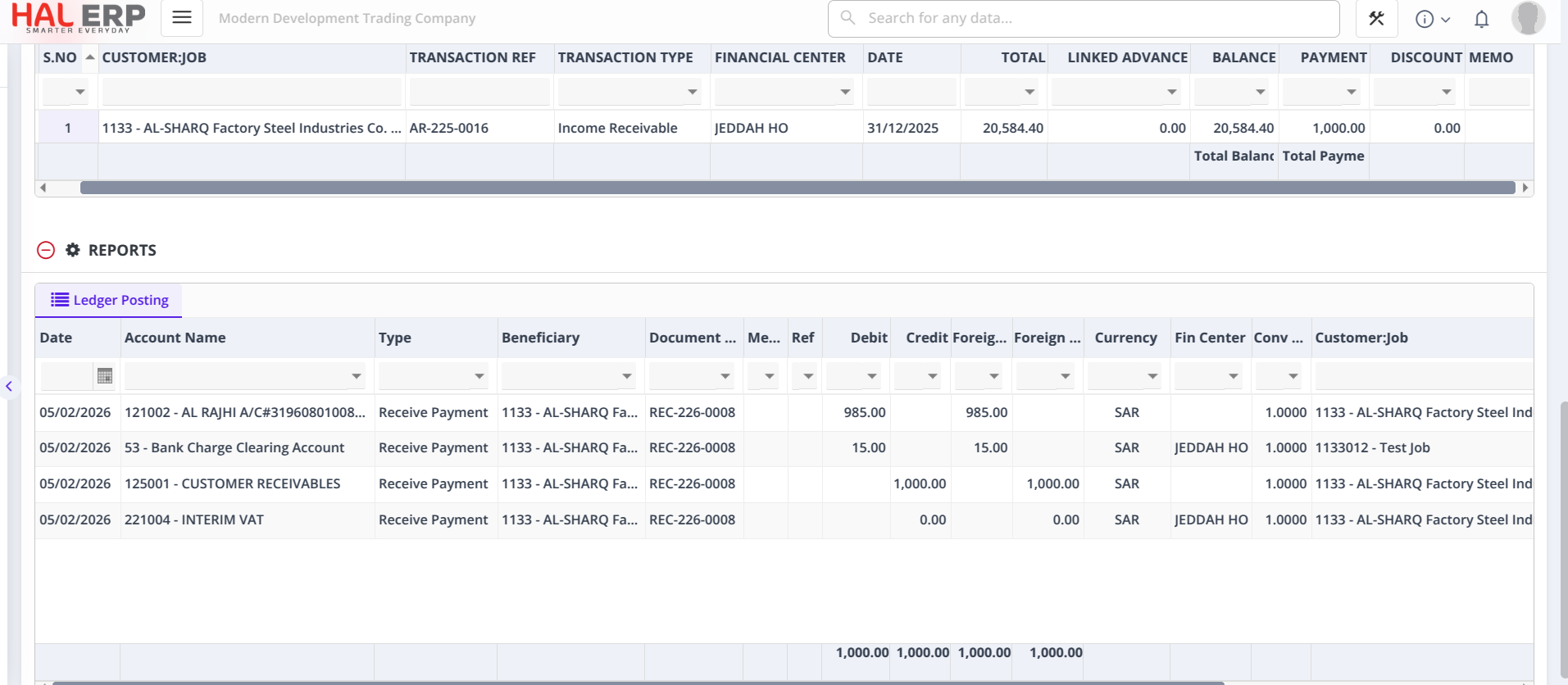
Step 2: Automatic Expense Creation
If Charges > 0:
- System automatically creates an Expense record
- Linked to the payment via transaction type
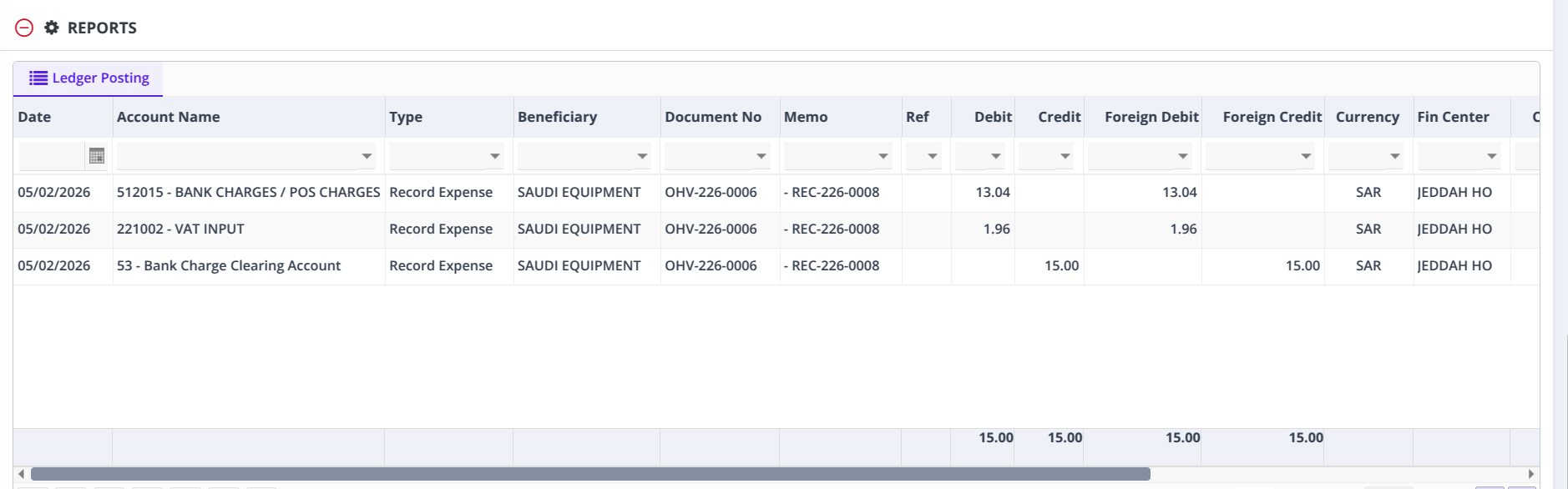
Expense Posting:
- Debit: Bank Charges Expense Account (charges excluding VAT)
- Debit: VAT Input Account (VAT on charges)
- Credit: Bank Charges Clearing Account (total charges)
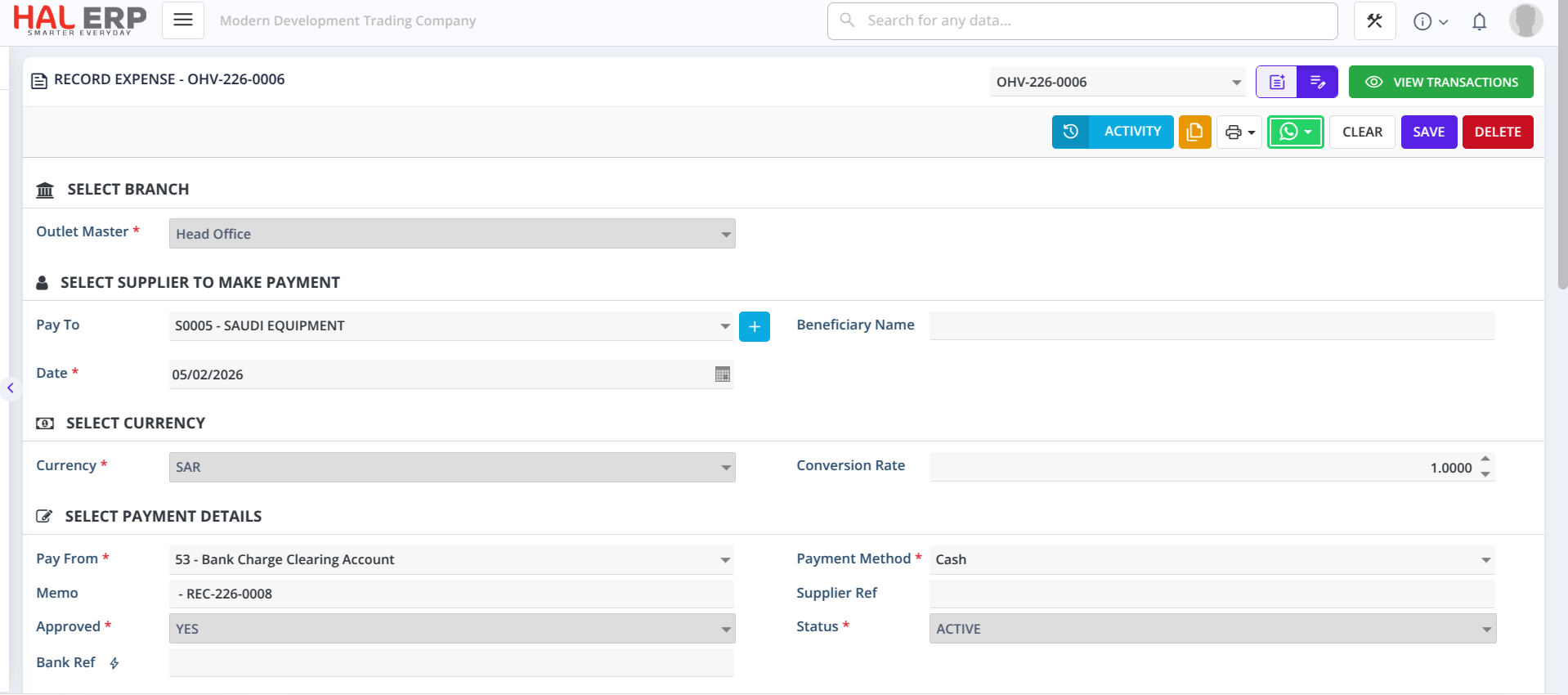
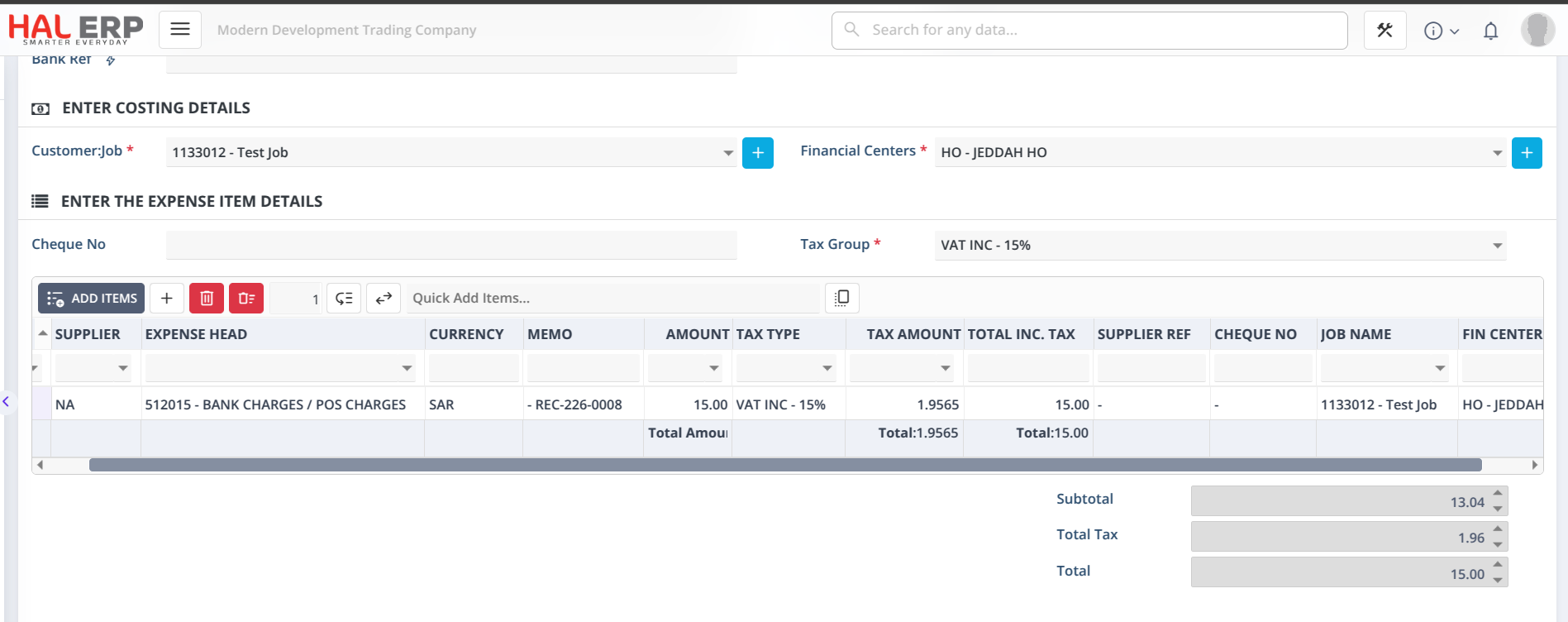
-
When Charges are updated in the Receive Payment, the previously created bank charges expense record will be automatically voided, and a new expense record will be created based on the updated charges amount.
-
When the Receive Payment is voided, the related bank charges expense record will also be automatically voided.
Result:
- ✅ Charges are booked as business expense
- ✅ VAT is recorded properly for VAT filing
- ✅ Clearing account is automatically balanced
- ✅ No manual journal entry required
- ✅ Fully automated process
🏦 Bank Reconciliation Impact
- Bank account ledger shows actual deposited amount (after deducting charges)
- Matches bank statement exactly
- Works perfectly in Auto Reconciliation Mode
- No manual adjustments needed
🎯 Key Benefits
✅ Full customer settlement — Customer AR cleared for full amount
✅ Automatic expense booking — Expense record created automatically
✅ VAT compliance — VAT captured for filing reports
✅ Clean ledger flow — Clearing account automatically balanced
✅ Seamless auto bank reconciliation — Deposit amounts match statements exactly
This enhancement ensures accurate accounting, proper expense recognition, and zero manual adjustment when banks deduct charges from customer payments. 🚀