🚀 Enhanced Role-Based Access in Data Import🚀
The Data Import module has been enhanced with controlled form visibility, role-based permissions.
Why is this important?
This enhancement provides better control over who can access the Data Import module and what actions they can perform. It also simplifies bulk data entry by automatically mapping spreadsheet columns to the corresponding form fields.
Form Visibility
-
HAL users can view all active forms in the Data Import module.
-
Normal users can view only forms that have been overridden for the tenant and have Has Data Input = Yes enabled in the overridden form. This configuration applies only to that specific tenant and does not affect other tenants.
-
Users must also have access to the corresponding ERP module.
-
Only forms that meet the required access and Has Data Input conditions will be available for selection in the Data Import module.
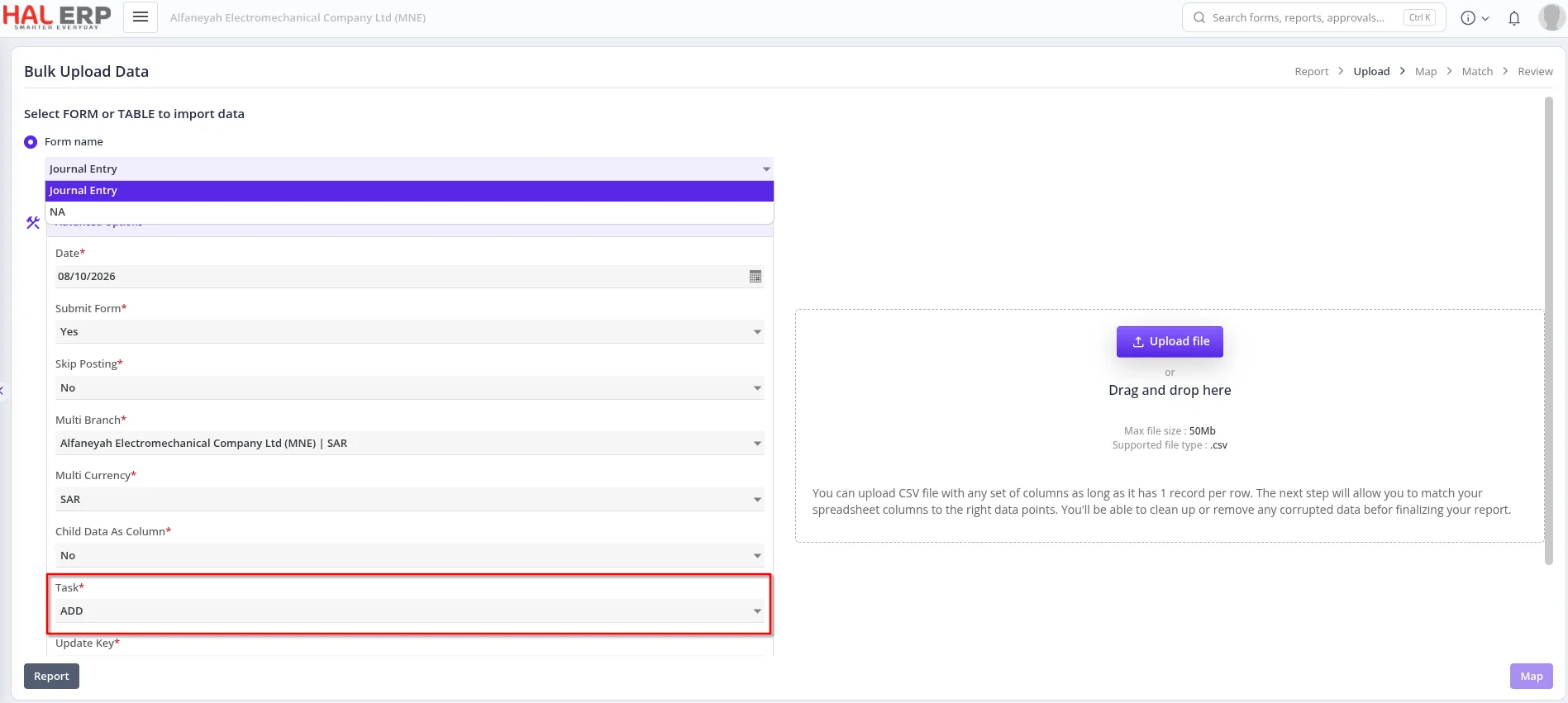
Data Import Roles
The following roles are available based on the required level of access:
Role
DataImport
Add, Update, and Clear All Data
DataImportAdd
Add data only
DataImportEdit
Update data only
The Clear All Data option is restricted to users with the DataImport role, as it removes the existing data from the selected form.
How does it work?
-
Enable Has Data Input = Yes for the required form.
-
Assign the appropriate Data Import role to the user.
-
Open the Data Import module.
-
Select the required form and task.
-
Upload the spreadsheet.
-
Review the automatically mapped values.
-
Select Done to import the data.
-
If any validation or data-related error occurs, the system displays the respective error for the affected data.
Spreadsheet Format
The first row of the spreadsheet should contain the database column names, and the second row should contain their corresponding display names.

The actual data starts from the third row.
Automatic Column Mapping
The system automatically maps spreadsheet columns to the respective form/database columns using the database column names provided in the first row.
Users can review the mapped values before completing the import.
Journal Entry Import
When importing Journal Entries, users can select an appropriate Group By option, such as:
-
Date
-
Memo
-
Document Number
Rows with the same grouping value will be imported as a single journal entry.
The system also validates the journal entry balance. The total debit and credit amounts must be equal; otherwise, the system will display a transaction balance validation error.
Benefits
This enhancement provides:
-
Controlled access to importable forms
-
Role-based permissions for Add, Update, and Clear All Data
-
Automatic spreadsheet-to-form column mapping
-
Safer bulk data entry
-
Validation before records are created
-
Easier Journal Entry imports with appropriate grouping
-
Improved control over data import operations
To enable this feature, configure Has Data Input = Yes for the required form and assign the appropriate DataImport, DataImportAdd, or DataImportEdit role to the user.